Installation of the LogZilla AI Module
Download PDFEnable LogZilla AI from System Settings, configuring model provider, model name, and API key for OpenAI, Anthropic, Gemini, or self-hosted endpoints
Installation of the LogZilla AI Module
The LogZilla AI module is included in the standard LogZilla installation package; enabling it is a settings change.
Prerequisites
- LogZilla instance (minimum version v6.36)
- Access to a suitable LLM provider (OpenAI, Anthropic, Google Gemini, OpenRouter, or a self-hosted OpenAI-compatible endpoint such as vLLM or Ollama)
Enabling LogZilla AI
1. Open the LogZilla AI settings
From the top navigation, open Settings and select System Settings.
In the sidebar, click LogZilla AI.
2. Configure the required fields
Four fields are required to enable LogZilla AI: Ai Enabled,
Model Type, Model Name, and Api Key. Api Key may stay empty
only for a vllm/ollama endpoint that accepts requests without a key. The
remaining fields are optional and primarily used for tuning or self-hosted
deployments.
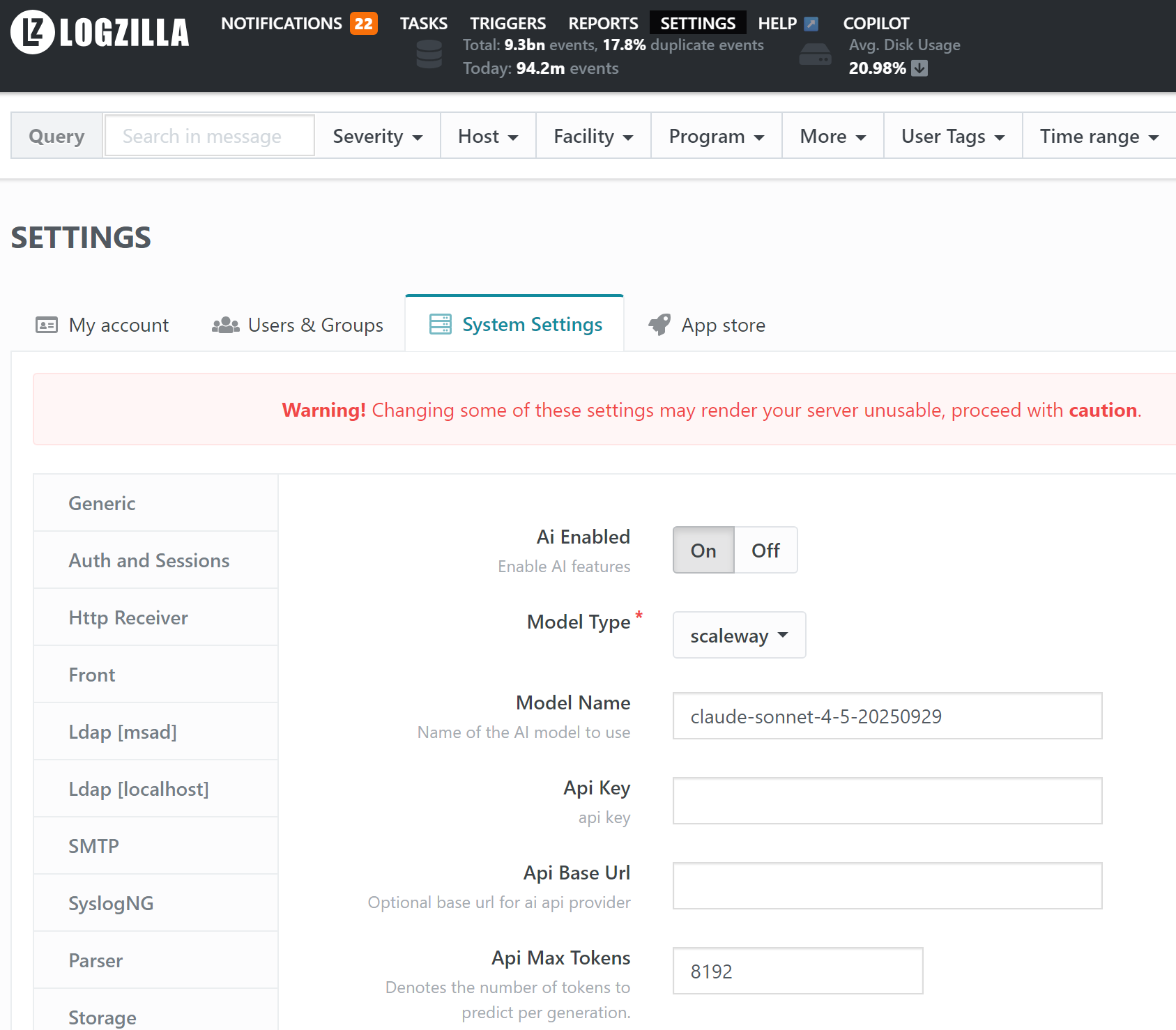
Required fields:
- Ai Enabled: Set to
Onto activate LogZilla AI. - Model Type: Select the AI provider. Supported values are
openai,anthropic,gemini,vllm/ollama, andopenrouter. Thevllm/ollamaoption covers any OpenAI-compatible endpoint, including vLLM and Ollama deployments. - Model Name: The model to use. After the provider, API key and, for
self-hosted endpoints, Api Base Url are saved, the field lists the
models the provider offers; the refresh button asks the provider again.
A model that is not listed can be typed in as a custom value. Examples:
claude-sonnet-5,claude-opus-5,gpt-5.2,llama3. - Api Key: The API key for the selected provider. A
vllm/ollamaendpoint that accepts requests without authentication needs none: leave the field empty. Every other provider needs a key; without one the Model Name list answersApi Key is not setand the connection test that runs when the settings are saved fails.
Optional fields:
- Api Base Url: Base URL for the AI API provider. Required for
self-hosted deployments such as vLLM or Ollama (for example,
http://host:11434/v1for an Ollama server). - Max Tokens: Maximum number of tokens the model produces per generation. (default: 8192, minimum: 8192)
- Context Window: Maximum number of context tokens the model accepts. vLLM/Ollama and OpenRouter use the value as given and fall back to the 100000 minimum when the field is empty. For Anthropic and OpenAI, LogZilla has a built-in list of model sizes and uses this value only for a model that is not on the list; when the field is empty such a model gets 200000 (Anthropic) or 128000 (OpenAI). Gemini reads the size from the provider. (default: unset, minimum when set: 100000)
- Request Timeout: Maximum number of seconds to wait for the LLM to respond before the request is considered timed out. (default: 300, range: 30-3600)
- Agent Max Run Time: Longest time, in seconds, that one AI run may take before it is stopped. A run is a chat answer or a scheduled AI report, including its queries and model calls. A chat answer that reaches the limit ends with a message naming it; a scheduled report mails its recipients a notice instead of the report. Keep it above Request Timeout so that one slow model call cannot end a run on its own. (default: 900, range: 60-7200)
3. Save Settings
Click Save changes to apply. The LogZilla UI restarts automatically.
4. Access LogZilla AI
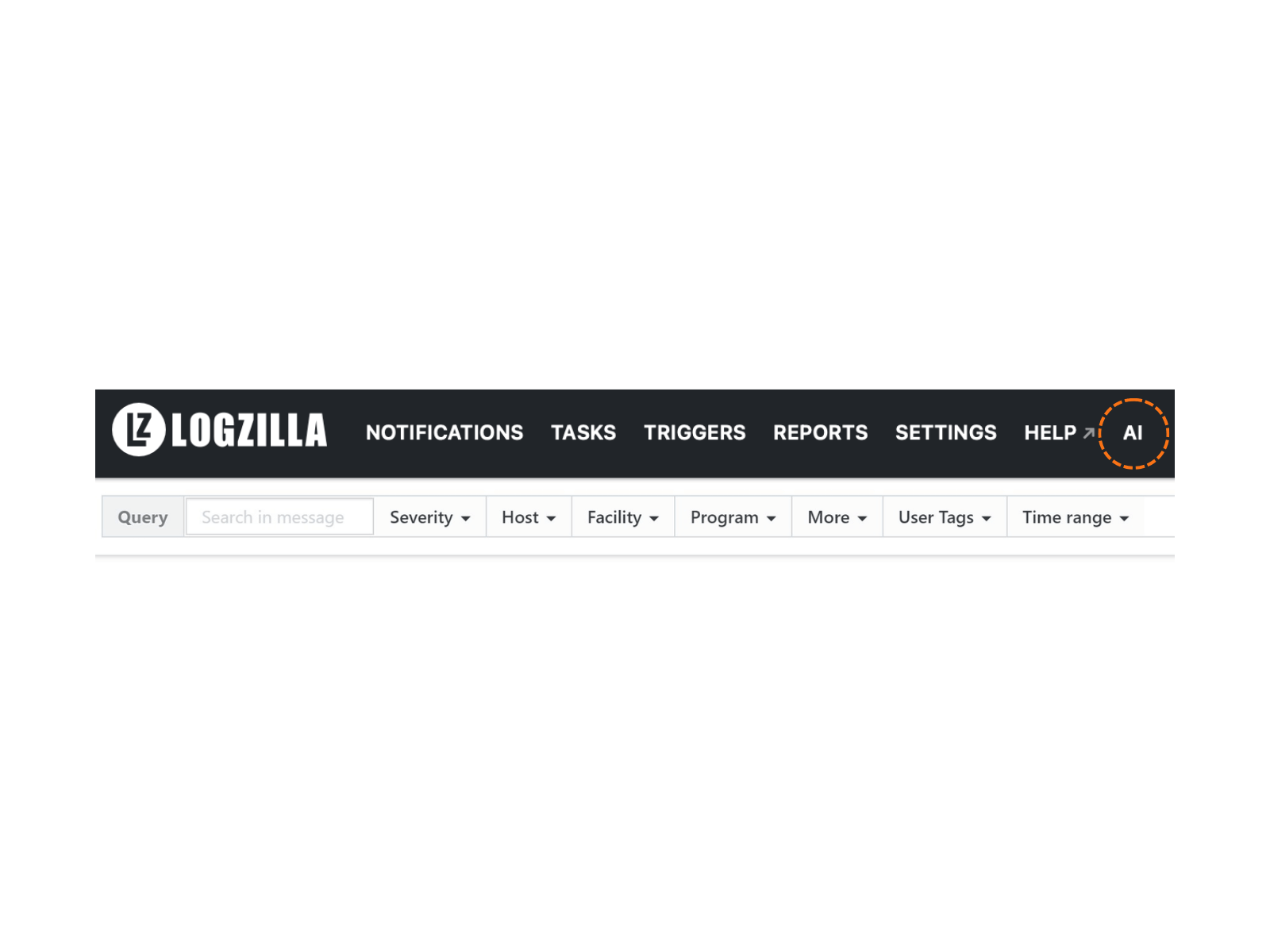
After a few seconds, the AI link appears in the top navigation.
Clicking it opens the LogZilla AI interface in a new browser tab at the
/ui2/chat-ai path of the LogZilla URL.
Listing a provider's models through the API
The Model Name list in the settings form comes from the API. Two calls
return the same {"models": [...]} document and require the same
permission as the settings page:
GET /api/settings/ai/modelsasks the provider named by the saved LogZilla AI settings. The settings form calls it whenever it builds the Model Name list: when the LogZilla AI settings are opened, after a save, and when the refresh button is pressed.POST /api/settings/ai/modelsasks the provider named in the request body, so a form can fill the list before anything is saved. The body is a JSON object with the optional fieldsmodel_type,api_key, andapi_base_url; a field that is omitted or null takes the saved value, so a client can send a new provider or base URL and reuse the saved key without ever reading it back. An emptyapi_base_urlclears the saved URL for that call, and an emptyapi_keymeans no key. Nothing is saved by the call, and LogZilla neither logs nor returns the key.
The POST answers 400 when the provider is unknown, the base URL is
invalid, or vllm/ollama is named without a base URL; the errors are
keyed by field, or by non_field_errors for the missing URL. Both calls
answer 502 with the message Api Key is not set when the key in use is
empty and the provider is not vllm/ollama, and with the provider's own
message when the provider rejects the key or cannot be reached. That
message is cut to one bounded line, and any recognizable piece of the key
it echoes is blanked out before it is logged or returned.
Advanced settings
The LogZilla AI pane also exposes several advanced fields. These are hidden by default and surface when the "Show advanced settings" toggle is enabled on the Settings page. Most deployments do not need to change them.
- Logzilla Mcp Docs Url: Base URL for the LogZilla MCP
documentation server. Defaults to
https://mcp-docs.logzilla.ai/mcp. - Extra Mcp Urls: Additional MCP servers to make available to LogZilla AI. Defaults to empty.
- Tracing Enabled: When on, AI request traces are exported to the configured tracing server. Defaults to off.
- Tracing Project Name: Project label applied to exported traces.
Defaults to
lz-ai-tracking. - Tracing Server Url: Endpoint of the external tracing collector.
- Tracing Api Key: API key used when the tracing server requires authentication.
For additional information, consult the LogZilla documentation or contact LogZilla support.